
A room setup library teams can search and follow
Show every room category in photos, with numbered markers on each item that has a place. New team members learn the setup by looking, and your teams find any item in seconds.
Photos for each room category
Choose a room category. Numbered markers sit on the objects in the photo; select a marker or a list entry to see its placement note.
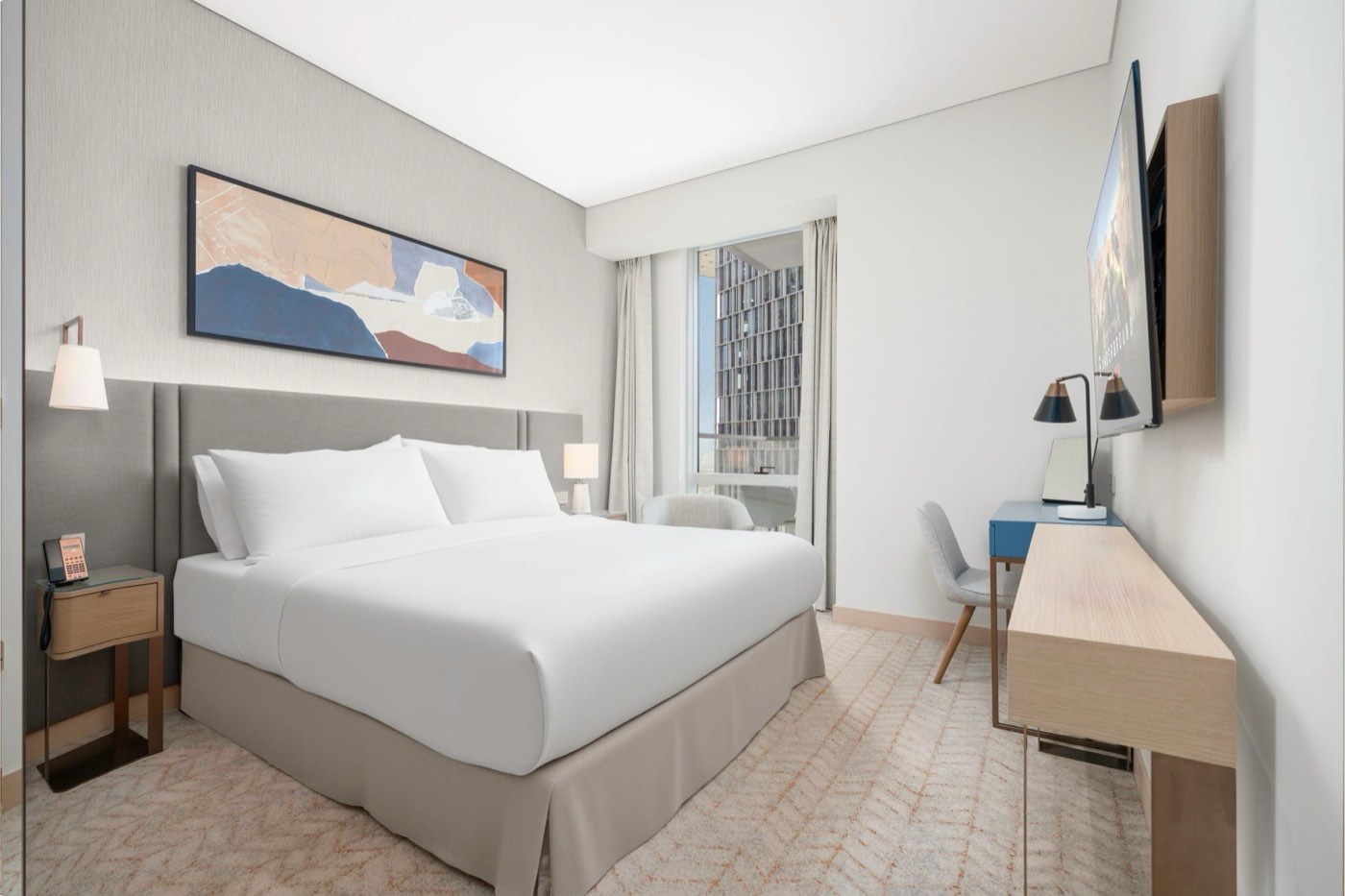
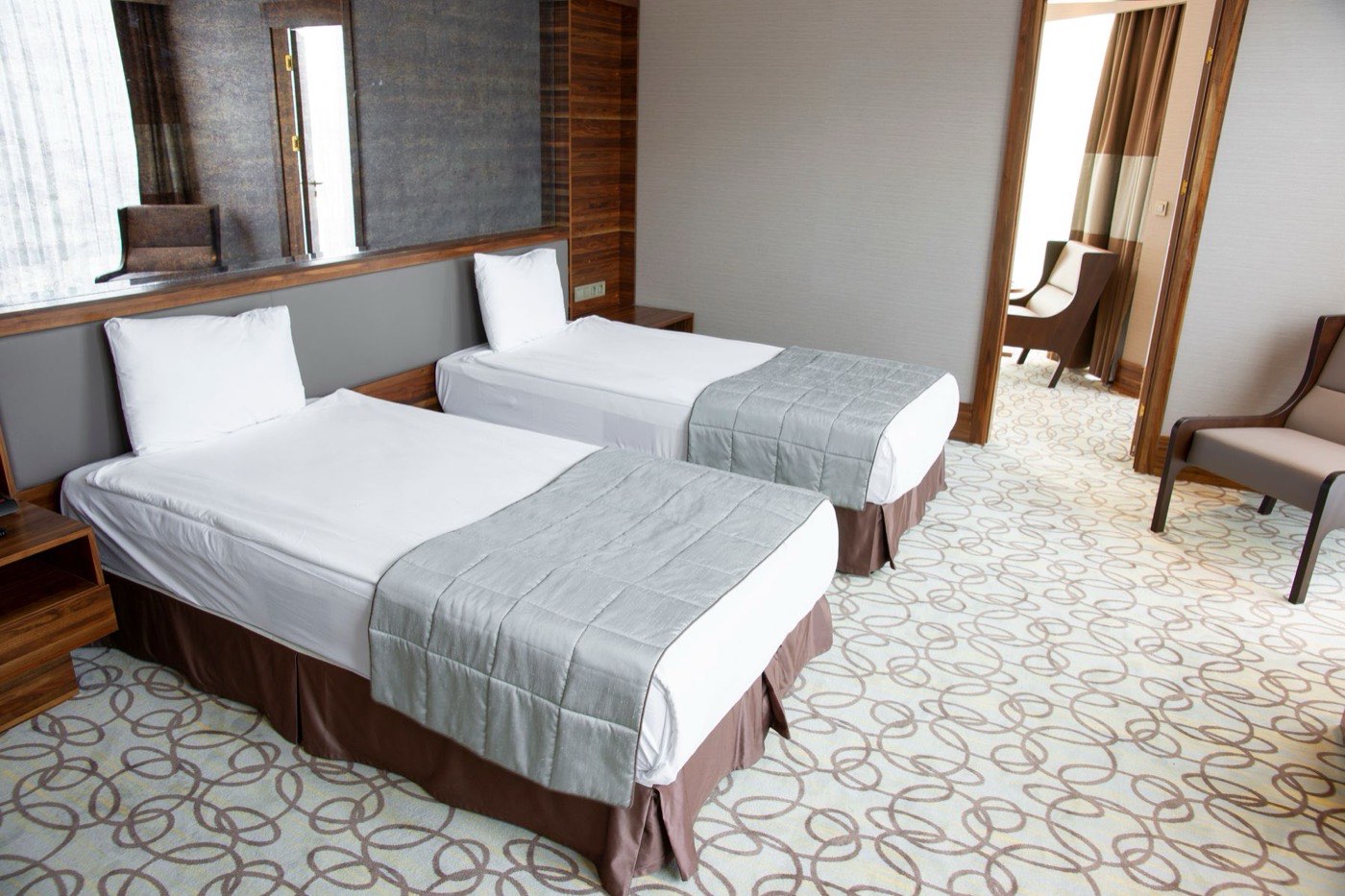
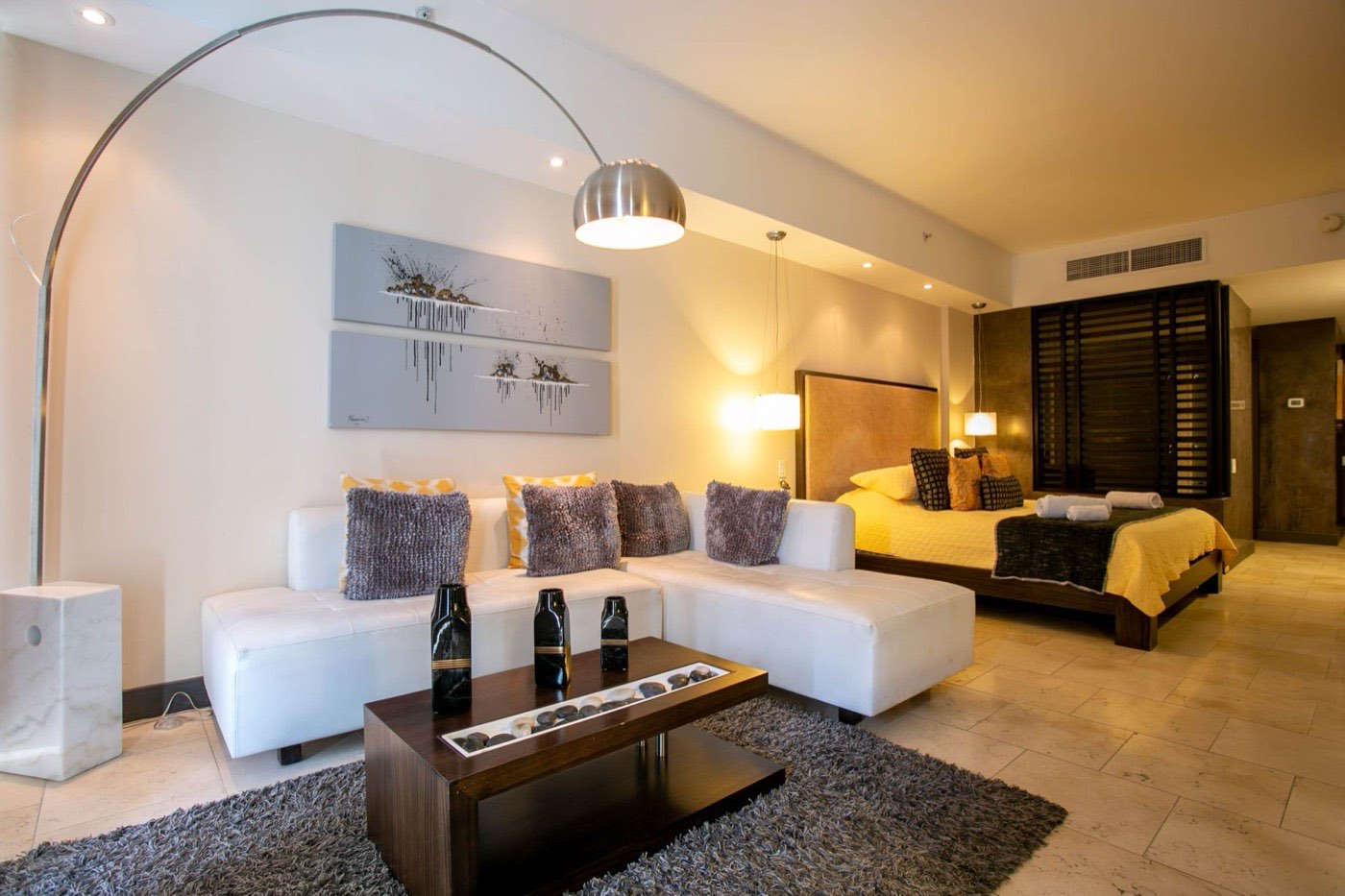
Inventory placement, Deluxe king
Illustrative interface. The photos are stock placeholders and the placement notes are examples, not GDI standards for any brand. In your library, each marker carries your own rule, written with your teams.
Inventory placement images for every setup
A room photo shows the whole setup. A placement image goes closer, so a team member can match the exact position of a pillow, an amenity or a lamp.
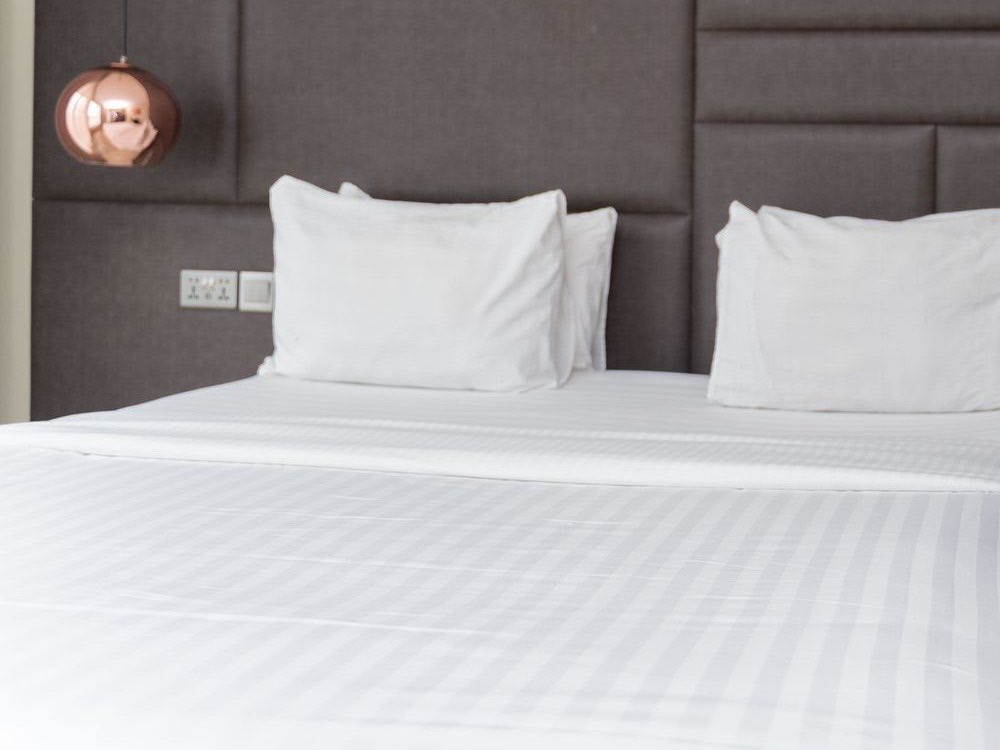
Bed and linen
Pillow count, layering and how the linen sits at the foot of the bed.
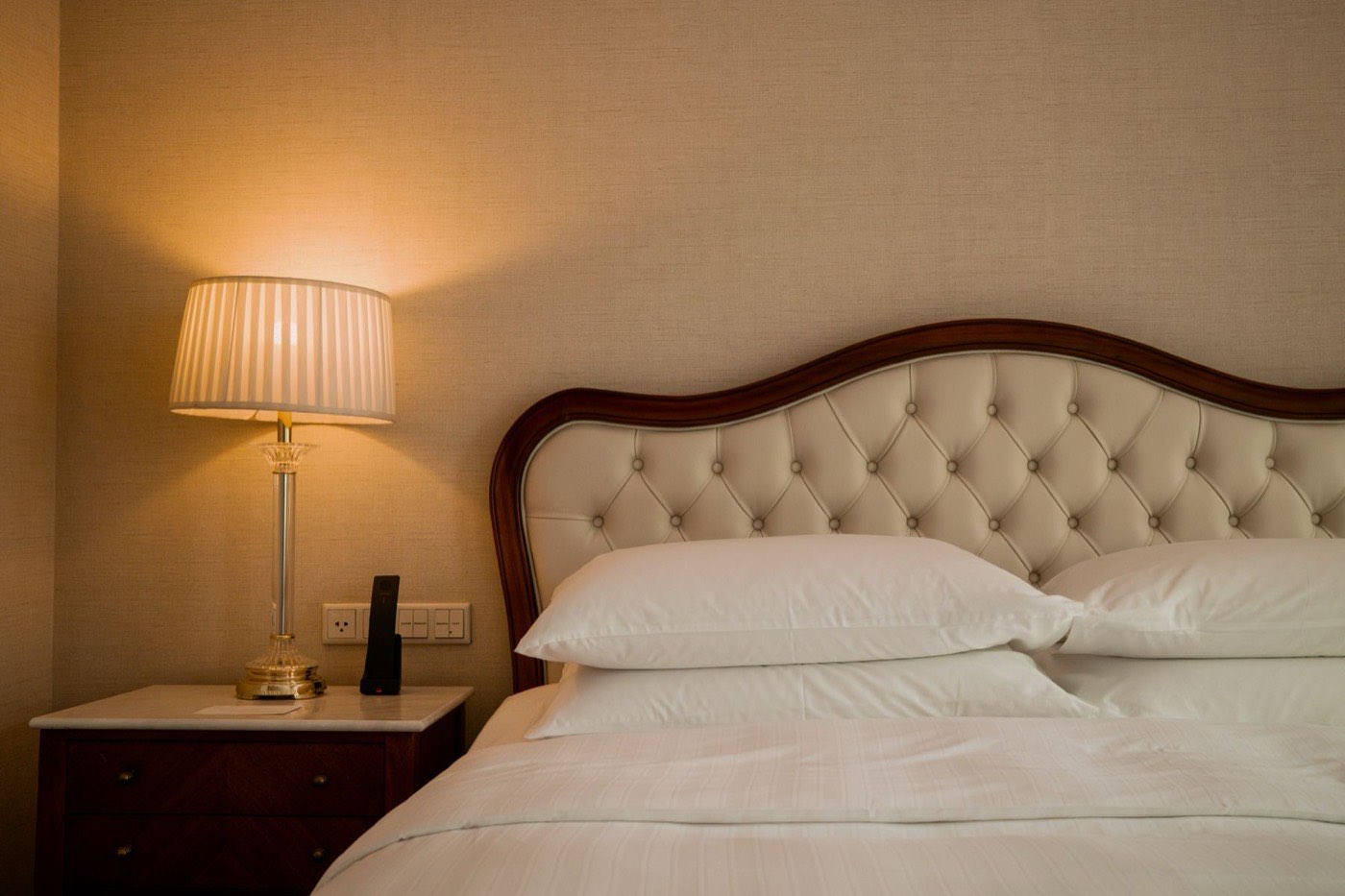
Turndown setup
The evening state of the room, from the folded corner to the lamp.
Bathroom amenities
Where the robe, towels and amenities are placed, shown as the guest will see them.
Stock photography used as placeholders. Replace with your own property photos.
Quick search for training
A trainer types the item. The library finds every room category where it appears and opens the photo with its marker. Try “lamp” or “pillow”.
No item matches. Clear the search or choose All rooms.
Edit a setup, then notify the teams
When a room setup changes, edit the placement note and send it. The library updates, and the people affected are told by email. Change a note below and watch the marker list above update.
Select a marker and edit its note. The email shows what your teams will read.
Illustrative interface. Saving here changes only this page, in your browser. Reload to reset. In the platform, every version is stored and can be restored.
Questions about the room setup library
Something else? Write to info@gdiworldwide.com.
What does the room setup library hold?
Photos for each room category and inventory placement images that show where each item goes. The library supports item presence, placement and arrangement for every setup.
How do teams find a setup when they are training?
Quick search. A trainer or new team member searches for an item or a room category and goes straight to the photo and the placement note.
Are the pin notes on this page real standards?
No. The photos are stock placeholders and the pin notes are illustrative examples. In your library, each pin carries your own brand's placement rule.
How do we change a setup and tell the teams?
Edit the photo or the placement note, then notify. The platform emails every relevant user with the details, and the version history stores the earlier setup.
Can we start with one room category?
Yes. Start with a single property or room category, then extend to a region or the whole brand in one go.
Ready to build your room setup library?
Tell us which room categories your teams find hardest to set up consistently. We will show you how they could look in one searchable library.